%22%20fill%3D%22rgb(0%2C0%2C0)%22%20d%3D%22M%201708.71%2032.0719%20L%201711.17%2032.1726%20L%201711.48%2033.8726%20C%201698.63%2068.7557%201678.15%20111.062%201663.25%20146.038%20L%201610.27%20270.222%20C%201600.68%20293.044%201548.56%20422.248%201540.04%20431.57%20C%201533.67%20438.547%201128.18%20599.98%201082.51%20618.503%20L%20896.13%20695.087%20C%20861.529%20708.971%20827.042%20723.139%20792.674%20737.591%20C%20773.372%20745.745%20749.086%20754.449%20732.134%20766.537%20C%20692.666%20794.684%20697.752%20841.911%20698.601%20884.356%20C%20699.702%20939.367%20740.841%20953.958%20782.454%20976.677%20L%20861.67%201020.18%20L%201099.89%201152.37%20C%201107.22%201156.5%201119.88%201164.35%201127.14%201167.58%20C%201169.86%201186.61%201146.74%201195.41%201117.9%201208.29%20C%201100.37%201216.11%201079.03%201225.42%201060.64%201233.58%20C%201010.18%201256.26%20959.538%201278.54%20908.726%201300.43%20C%20894.529%201306.71%20881.754%201312.22%20867.258%201317.69%20C%20862.804%201316.04%20858.4%201314.27%20854.051%201312.36%20C%20836.181%201304.32%20811.094%201289.47%20793.048%201279.86%20L%20667.457%201213.33%20L%20559.157%201156.4%20C%20524.558%201137.94%20487.124%201123.47%20472.687%201083.79%20C%20469.558%201074.97%20467.621%201065.77%20466.927%201056.43%20C%20465.765%201038.59%20466.66%201011.98%20466.668%20993.332%20L%20466.359%20873.615%20C%20465.984%20815.652%20463.947%20757.728%20465.485%20699.747%20C%20465.795%20688.052%20466.054%20675.662%20467.175%20664.054%20C%20469.31%20640.858%20475.406%20618.2%20485.2%20597.064%20C%20517.254%20527.676%20568.707%20508.151%20633.929%20480.324%20L%20726.507%20441.167%20L%201040.13%20310.018%20L%201452.31%20137.782%20L%201616.93%2069.4204%20C%201646.93%2057.0612%201678.5%2043.152%201708.71%2032.0719%20z%22%2F%3E%0D%0A%3Cpath%20transform%3D%22translate(0%2C0)%22%20fill%3D%22rgb(0%2C0%2C0)%22%20d%3D%22M%201180.36%20731.182%20C%201195.24%20733.945%201233.7%20756.876%201248.98%20765.026%20L%201364.16%20826.126%20L%201484.37%20889.381%20C%201498.57%20896.955%201532.42%20914.303%201544.52%20923.261%20C%201557.39%20932.823%201567.44%20945.681%201573.6%20960.477%20C%201577.74%20970.613%201580.28%20981.333%201581.12%20992.25%20C%201582.2%201006.88%201581.3%201032.21%201581.31%201047.95%20L%201581.63%201160.97%20C%201582.26%201211.62%201582.57%201262.29%201582.57%201312.95%20C%201582.44%201333.48%201582.84%201362.18%201581%201382.38%20C%201579.14%201403.66%201573.97%201424.53%201565.69%201444.23%20C%201551.08%201479.78%201525.53%201509.75%201492.74%201529.79%20C%201460.17%201549.9%201412.55%201568.06%201376.2%201583.68%20C%201297.89%201617.01%201219.4%201649.9%201140.72%201682.34%20L%20334.313%202018.15%20C%20339.936%202006.05%20344.516%201995.06%20349.5%201982.67%20C%20380.898%201908.42%20413.985%201834.57%20445.11%201760.02%20C%20459.052%201725.94%20473.375%201692.02%20488.076%201658.26%20C%20492.996%201647.05%20502.305%201624.37%20508.527%201614.93%20C%20525.371%201606.59%20557.563%201594.41%20575.732%201586.98%20L%20705.864%201534%20C%20845.58%201478.27%20984.961%201421.71%201124%201364.32%20L%201246.78%201313.94%20C%201290.4%201295.55%201343.27%201280.12%201348.5%201224.17%20C%201350.49%201202.85%201351.54%201164.6%201346.69%201143.96%20C%201344.6%201134.87%201340.77%201126.27%201335.41%201118.63%20C%201321.45%201099.1%201289.07%201084.29%201267.79%201072.67%20L%201188.51%201029.14%20L%20997.495%20923.267%20L%20933.233%20887.54%20C%20924.86%20882.894%20890.238%20867.795%20898.045%20858.391%20C%20907.874%20846.549%20953.243%20829.416%20967.235%20823.263%20L%201064.01%20780.291%20C%201087.5%20769.837%201111.05%20759.524%201134.65%20749.351%20C%201147.99%20743.555%201166.91%20734.741%201180.36%20731.182%20z%22%2F%3E%0D%0A%3C%2Fsvg%3E)
%22%20fill%3D%22rgb(255%2C255%2C255)%22%20d%3D%22M%201708.71%2032.0719%20L%201711.17%2032.1726%20L%201711.48%2033.8726%20C%201698.63%2068.7557%201678.15%20111.062%201663.25%20146.038%20L%201610.27%20270.222%20C%201600.68%20293.044%201548.56%20422.248%201540.04%20431.57%20C%201533.67%20438.547%201128.18%20599.98%201082.51%20618.503%20L%20896.13%20695.087%20C%20861.529%20708.971%20827.042%20723.139%20792.674%20737.591%20C%20773.372%20745.745%20749.086%20754.449%20732.134%20766.537%20C%20692.666%20794.684%20697.752%20841.911%20698.601%20884.356%20C%20699.702%20939.367%20740.841%20953.958%20782.454%20976.677%20L%20861.67%201020.18%20L%201099.89%201152.37%20C%201107.22%201156.5%201119.88%201164.35%201127.14%201167.58%20C%201169.86%201186.61%201146.74%201195.41%201117.9%201208.29%20C%201100.37%201216.11%201079.03%201225.42%201060.64%201233.58%20C%201010.18%201256.26%20959.538%201278.54%20908.726%201300.43%20C%20894.529%201306.71%20881.754%201312.22%20867.258%201317.69%20C%20862.804%201316.04%20858.4%201314.27%20854.051%201312.36%20C%20836.181%201304.32%20811.094%201289.47%20793.048%201279.86%20L%20667.457%201213.33%20L%20559.157%201156.4%20C%20524.558%201137.94%20487.124%201123.47%20472.687%201083.79%20C%20469.558%201074.97%20467.621%201065.77%20466.927%201056.43%20C%20465.765%201038.59%20466.66%201011.98%20466.668%20993.332%20L%20466.359%20873.615%20C%20465.984%20815.652%20463.947%20757.728%20465.485%20699.747%20C%20465.795%20688.052%20466.054%20675.662%20467.175%20664.054%20C%20469.31%20640.858%20475.406%20618.2%20485.2%20597.064%20C%20517.254%20527.676%20568.707%20508.151%20633.929%20480.324%20L%20726.507%20441.167%20L%201040.13%20310.018%20L%201452.31%20137.782%20L%201616.93%2069.4204%20C%201646.93%2057.0612%201678.5%2043.152%201708.71%2032.0719%20z%22%2F%3E%0D%0A%3Cpath%20transform%3D%22translate(0%2C0)%22%20fill%3D%22rgb(255%2C255%2C255)%22%20d%3D%22M%201180.36%20731.182%20C%201195.24%20733.945%201233.7%20756.876%201248.98%20765.026%20L%201364.16%20826.126%20L%201484.37%20889.381%20C%201498.57%20896.955%201532.42%20914.303%201544.52%20923.261%20C%201557.39%20932.823%201567.44%20945.681%201573.6%20960.477%20C%201577.74%20970.613%201580.28%20981.333%201581.12%20992.25%20C%201582.2%201006.88%201581.3%201032.21%201581.31%201047.95%20L%201581.63%201160.97%20C%201582.26%201211.62%201582.57%201262.29%201582.57%201312.95%20C%201582.44%201333.48%201582.84%201362.18%201581%201382.38%20C%201579.14%201403.66%201573.97%201424.53%201565.69%201444.23%20C%201551.08%201479.78%201525.53%201509.75%201492.74%201529.79%20C%201460.17%201549.9%201412.55%201568.06%201376.2%201583.68%20C%201297.89%201617.01%201219.4%201649.9%201140.72%201682.34%20L%20334.313%202018.15%20C%20339.936%202006.05%20344.516%201995.06%20349.5%201982.67%20C%20380.898%201908.42%20413.985%201834.57%20445.11%201760.02%20C%20459.052%201725.94%20473.375%201692.02%20488.076%201658.26%20C%20492.996%201647.05%20502.305%201624.37%20508.527%201614.93%20C%20525.371%201606.59%20557.563%201594.41%20575.732%201586.98%20L%20705.864%201534%20C%20845.58%201478.27%20984.961%201421.71%201124%201364.32%20L%201246.78%201313.94%20C%201290.4%201295.55%201343.27%201280.12%201348.5%201224.17%20C%201350.49%201202.85%201351.54%201164.6%201346.69%201143.96%20C%201344.6%201134.87%201340.77%201126.27%201335.41%201118.63%20C%201321.45%201099.1%201289.07%201084.29%201267.79%201072.67%20L%201188.51%201029.14%20L%20997.495%20923.267%20L%20933.233%20887.54%20C%20924.86%20882.894%20890.238%20867.795%20898.045%20858.391%20C%20907.874%20846.549%20953.243%20829.416%20967.235%20823.263%20L%201064.01%20780.291%20C%201087.5%20769.837%201111.05%20759.524%201134.65%20749.351%20C%201147.99%20743.555%201166.91%20734.741%201180.36%20731.182%20z%22%2F%3E%0D%0A%3C%2Fsvg%3E)

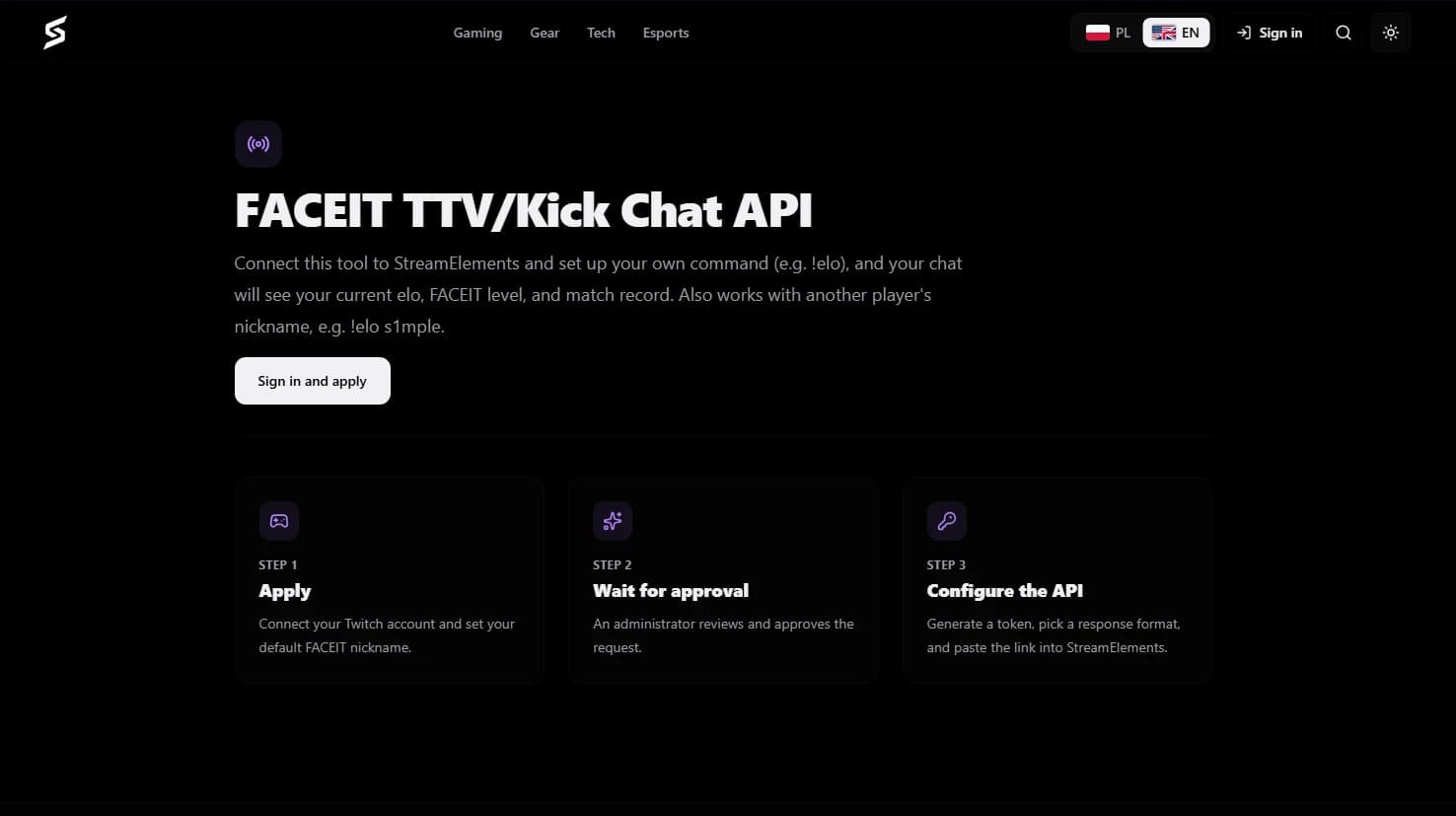
Sooner or later, a viewer on a CS2 stream asks the same question: what's your ELO. You can say it out loud, you can drop a FACEIT profile link in your channel description, but neither option gives the viewer an answer right there in chat, at the exact moment they ask. FACEIT has no built-in chat integration, so streamers have made do with whatever they had: memory, a browser bookmark, or a static overlay graphic that goes stale within minutes. We built a tool that solves this with a single command: FACEIT TTV/Kick Chat API shows your current level, ELO, and today's match record directly in chat, through StreamElements.
Here's the full guide: how to apply, how to configure the response, and how to paste the finished command into StreamElements so it works today.
A viewer doesn't want to click through to a FACEIT profile mid-round. They want to type !elo and get an answer before the round ends.
Step 1: apply and connect your Twitch account
Everything starts at spawnsy.com/faceit-ttv-kick-chat-api. You log into your SPAWNSY account, connect your Twitch account, and enter your default FACEIT nickname, the one the command falls back to when a viewer doesn't name another player. This step takes a minute, since the rest of the setup only happens after approval.
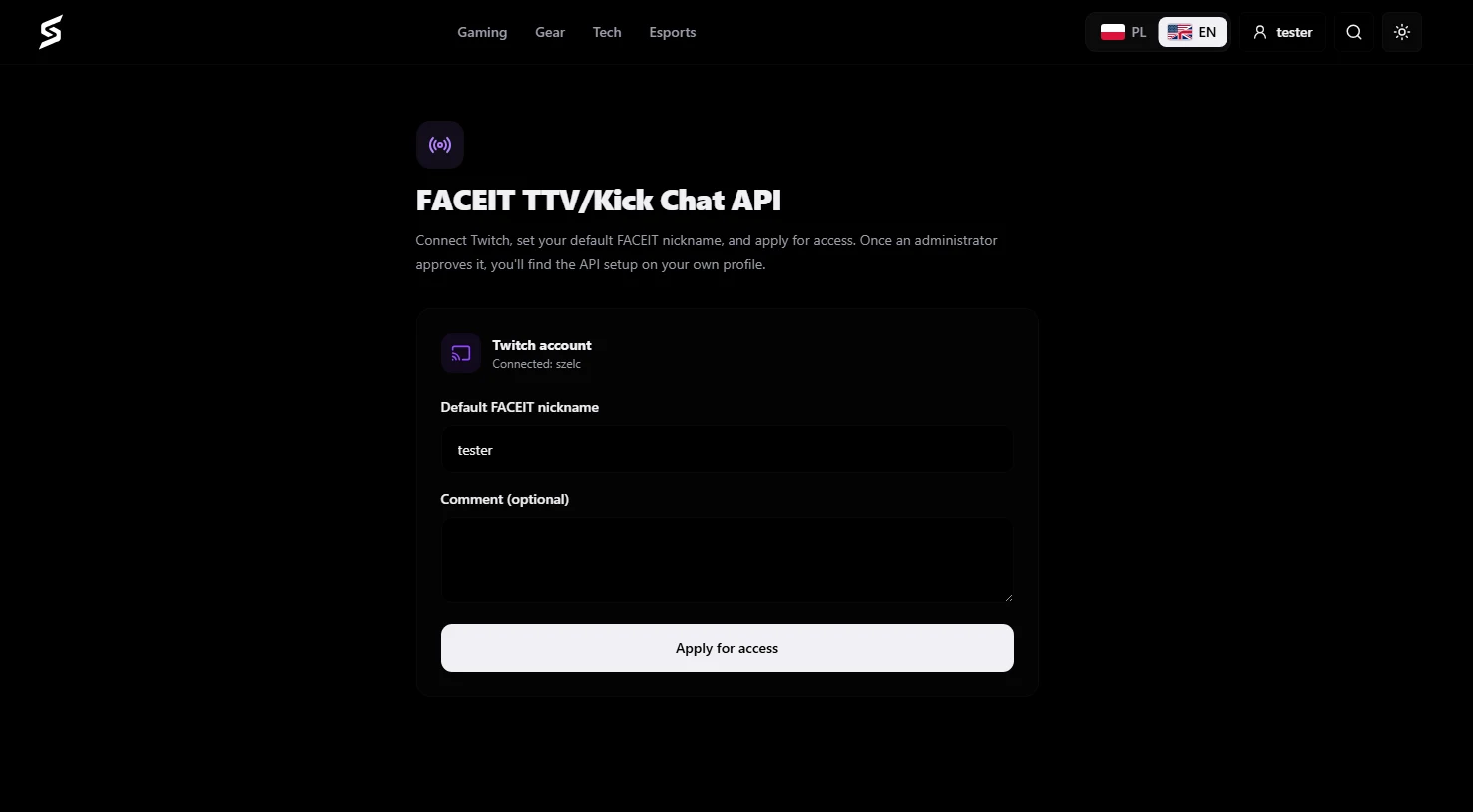
It's worth entering the correct, current FACEIT nickname right away. That's what gets stored as your default profile, and it's what the admin checks the application against.
Step 2: wait for approval
The application goes to a SPAWNSY administrator, who reviews it manually and approves it. This isn't an automated bot approving everyone in seconds, so there's a short wait involved. Once approved, a new configuration button appears on your streamer profile inside the SPAWNSY panel, one that wasn't there before.
Step 3: configure the response format
This is where the real setup happens. In the configuration panel you generate an API token, pick a response format, and set the language the command replies in on chat. There are nine ready-made presets to choose from, so most streamers won't need to write anything themselves. One of the presets looks like this:
If none of the nine presets fit, there's a tenth option: a "Custom" preset with a fully open text template. It isn't unlocked by default. You need to email [email protected], and an administrator enables it manually on request. That setup makes sense: it keeps most streamers on a consistent format while still leaving room for anyone who wants something entirely their own.
The chat response language is set independently from the SPAWNSY interface language. You can run the panel in Polish and have the command answer viewers in English, or the other way around. That matters for streamers with an international audience who don't want one language choice dictating the other.
Why W/L shows today's matches, not your career total
The win/loss count in the presets covers only the last 24 hours, meaning matches played that day. A viewer watching a live stream is asking about today's form. If the command showed a career total instead, the W/L number would stay essentially frozen all evening and tell the viewer nothing about what's happening right now.
Step 4: paste the command into StreamElements
Once the preset and language are set, the panel generates a finished command along with a copy button. There's nothing to assemble by hand and no syntax to get right. Open your StreamElements dashboard, go to Chatbot, then Custom Commands, create a new command (for example !elo), and paste in what the SPAWNSY panel generated.
From that point on, any viewer who types !elo in chat gets the current level, ELO, and today's record. The command also works with another player's nickname, so a viewer can check a pro player's stats too, by typing !elo s1mple.



Comments
Discussion
Join the conversation around this story.
Join the discussion
Sign in to comment and reply to other readers.
Sign inNo comments yet
Start the discussion first.