%22%20fill%3D%22rgb(0%2C0%2C0)%22%20d%3D%22M%201708.71%2032.0719%20L%201711.17%2032.1726%20L%201711.48%2033.8726%20C%201698.63%2068.7557%201678.15%20111.062%201663.25%20146.038%20L%201610.27%20270.222%20C%201600.68%20293.044%201548.56%20422.248%201540.04%20431.57%20C%201533.67%20438.547%201128.18%20599.98%201082.51%20618.503%20L%20896.13%20695.087%20C%20861.529%20708.971%20827.042%20723.139%20792.674%20737.591%20C%20773.372%20745.745%20749.086%20754.449%20732.134%20766.537%20C%20692.666%20794.684%20697.752%20841.911%20698.601%20884.356%20C%20699.702%20939.367%20740.841%20953.958%20782.454%20976.677%20L%20861.67%201020.18%20L%201099.89%201152.37%20C%201107.22%201156.5%201119.88%201164.35%201127.14%201167.58%20C%201169.86%201186.61%201146.74%201195.41%201117.9%201208.29%20C%201100.37%201216.11%201079.03%201225.42%201060.64%201233.58%20C%201010.18%201256.26%20959.538%201278.54%20908.726%201300.43%20C%20894.529%201306.71%20881.754%201312.22%20867.258%201317.69%20C%20862.804%201316.04%20858.4%201314.27%20854.051%201312.36%20C%20836.181%201304.32%20811.094%201289.47%20793.048%201279.86%20L%20667.457%201213.33%20L%20559.157%201156.4%20C%20524.558%201137.94%20487.124%201123.47%20472.687%201083.79%20C%20469.558%201074.97%20467.621%201065.77%20466.927%201056.43%20C%20465.765%201038.59%20466.66%201011.98%20466.668%20993.332%20L%20466.359%20873.615%20C%20465.984%20815.652%20463.947%20757.728%20465.485%20699.747%20C%20465.795%20688.052%20466.054%20675.662%20467.175%20664.054%20C%20469.31%20640.858%20475.406%20618.2%20485.2%20597.064%20C%20517.254%20527.676%20568.707%20508.151%20633.929%20480.324%20L%20726.507%20441.167%20L%201040.13%20310.018%20L%201452.31%20137.782%20L%201616.93%2069.4204%20C%201646.93%2057.0612%201678.5%2043.152%201708.71%2032.0719%20z%22%2F%3E%0D%0A%3Cpath%20transform%3D%22translate(0%2C0)%22%20fill%3D%22rgb(0%2C0%2C0)%22%20d%3D%22M%201180.36%20731.182%20C%201195.24%20733.945%201233.7%20756.876%201248.98%20765.026%20L%201364.16%20826.126%20L%201484.37%20889.381%20C%201498.57%20896.955%201532.42%20914.303%201544.52%20923.261%20C%201557.39%20932.823%201567.44%20945.681%201573.6%20960.477%20C%201577.74%20970.613%201580.28%20981.333%201581.12%20992.25%20C%201582.2%201006.88%201581.3%201032.21%201581.31%201047.95%20L%201581.63%201160.97%20C%201582.26%201211.62%201582.57%201262.29%201582.57%201312.95%20C%201582.44%201333.48%201582.84%201362.18%201581%201382.38%20C%201579.14%201403.66%201573.97%201424.53%201565.69%201444.23%20C%201551.08%201479.78%201525.53%201509.75%201492.74%201529.79%20C%201460.17%201549.9%201412.55%201568.06%201376.2%201583.68%20C%201297.89%201617.01%201219.4%201649.9%201140.72%201682.34%20L%20334.313%202018.15%20C%20339.936%202006.05%20344.516%201995.06%20349.5%201982.67%20C%20380.898%201908.42%20413.985%201834.57%20445.11%201760.02%20C%20459.052%201725.94%20473.375%201692.02%20488.076%201658.26%20C%20492.996%201647.05%20502.305%201624.37%20508.527%201614.93%20C%20525.371%201606.59%20557.563%201594.41%20575.732%201586.98%20L%20705.864%201534%20C%20845.58%201478.27%20984.961%201421.71%201124%201364.32%20L%201246.78%201313.94%20C%201290.4%201295.55%201343.27%201280.12%201348.5%201224.17%20C%201350.49%201202.85%201351.54%201164.6%201346.69%201143.96%20C%201344.6%201134.87%201340.77%201126.27%201335.41%201118.63%20C%201321.45%201099.1%201289.07%201084.29%201267.79%201072.67%20L%201188.51%201029.14%20L%20997.495%20923.267%20L%20933.233%20887.54%20C%20924.86%20882.894%20890.238%20867.795%20898.045%20858.391%20C%20907.874%20846.549%20953.243%20829.416%20967.235%20823.263%20L%201064.01%20780.291%20C%201087.5%20769.837%201111.05%20759.524%201134.65%20749.351%20C%201147.99%20743.555%201166.91%20734.741%201180.36%20731.182%20z%22%2F%3E%0D%0A%3C%2Fsvg%3E)
%22%20fill%3D%22rgb(255%2C255%2C255)%22%20d%3D%22M%201708.71%2032.0719%20L%201711.17%2032.1726%20L%201711.48%2033.8726%20C%201698.63%2068.7557%201678.15%20111.062%201663.25%20146.038%20L%201610.27%20270.222%20C%201600.68%20293.044%201548.56%20422.248%201540.04%20431.57%20C%201533.67%20438.547%201128.18%20599.98%201082.51%20618.503%20L%20896.13%20695.087%20C%20861.529%20708.971%20827.042%20723.139%20792.674%20737.591%20C%20773.372%20745.745%20749.086%20754.449%20732.134%20766.537%20C%20692.666%20794.684%20697.752%20841.911%20698.601%20884.356%20C%20699.702%20939.367%20740.841%20953.958%20782.454%20976.677%20L%20861.67%201020.18%20L%201099.89%201152.37%20C%201107.22%201156.5%201119.88%201164.35%201127.14%201167.58%20C%201169.86%201186.61%201146.74%201195.41%201117.9%201208.29%20C%201100.37%201216.11%201079.03%201225.42%201060.64%201233.58%20C%201010.18%201256.26%20959.538%201278.54%20908.726%201300.43%20C%20894.529%201306.71%20881.754%201312.22%20867.258%201317.69%20C%20862.804%201316.04%20858.4%201314.27%20854.051%201312.36%20C%20836.181%201304.32%20811.094%201289.47%20793.048%201279.86%20L%20667.457%201213.33%20L%20559.157%201156.4%20C%20524.558%201137.94%20487.124%201123.47%20472.687%201083.79%20C%20469.558%201074.97%20467.621%201065.77%20466.927%201056.43%20C%20465.765%201038.59%20466.66%201011.98%20466.668%20993.332%20L%20466.359%20873.615%20C%20465.984%20815.652%20463.947%20757.728%20465.485%20699.747%20C%20465.795%20688.052%20466.054%20675.662%20467.175%20664.054%20C%20469.31%20640.858%20475.406%20618.2%20485.2%20597.064%20C%20517.254%20527.676%20568.707%20508.151%20633.929%20480.324%20L%20726.507%20441.167%20L%201040.13%20310.018%20L%201452.31%20137.782%20L%201616.93%2069.4204%20C%201646.93%2057.0612%201678.5%2043.152%201708.71%2032.0719%20z%22%2F%3E%0D%0A%3Cpath%20transform%3D%22translate(0%2C0)%22%20fill%3D%22rgb(255%2C255%2C255)%22%20d%3D%22M%201180.36%20731.182%20C%201195.24%20733.945%201233.7%20756.876%201248.98%20765.026%20L%201364.16%20826.126%20L%201484.37%20889.381%20C%201498.57%20896.955%201532.42%20914.303%201544.52%20923.261%20C%201557.39%20932.823%201567.44%20945.681%201573.6%20960.477%20C%201577.74%20970.613%201580.28%20981.333%201581.12%20992.25%20C%201582.2%201006.88%201581.3%201032.21%201581.31%201047.95%20L%201581.63%201160.97%20C%201582.26%201211.62%201582.57%201262.29%201582.57%201312.95%20C%201582.44%201333.48%201582.84%201362.18%201581%201382.38%20C%201579.14%201403.66%201573.97%201424.53%201565.69%201444.23%20C%201551.08%201479.78%201525.53%201509.75%201492.74%201529.79%20C%201460.17%201549.9%201412.55%201568.06%201376.2%201583.68%20C%201297.89%201617.01%201219.4%201649.9%201140.72%201682.34%20L%20334.313%202018.15%20C%20339.936%202006.05%20344.516%201995.06%20349.5%201982.67%20C%20380.898%201908.42%20413.985%201834.57%20445.11%201760.02%20C%20459.052%201725.94%20473.375%201692.02%20488.076%201658.26%20C%20492.996%201647.05%20502.305%201624.37%20508.527%201614.93%20C%20525.371%201606.59%20557.563%201594.41%20575.732%201586.98%20L%20705.864%201534%20C%20845.58%201478.27%20984.961%201421.71%201124%201364.32%20L%201246.78%201313.94%20C%201290.4%201295.55%201343.27%201280.12%201348.5%201224.17%20C%201350.49%201202.85%201351.54%201164.6%201346.69%201143.96%20C%201344.6%201134.87%201340.77%201126.27%201335.41%201118.63%20C%201321.45%201099.1%201289.07%201084.29%201267.79%201072.67%20L%201188.51%201029.14%20L%20997.495%20923.267%20L%20933.233%20887.54%20C%20924.86%20882.894%20890.238%20867.795%20898.045%20858.391%20C%20907.874%20846.549%20953.243%20829.416%20967.235%20823.263%20L%201064.01%20780.291%20C%201087.5%20769.837%201111.05%20759.524%201134.65%20749.351%20C%201147.99%20743.555%201166.91%20734.741%201180.36%20731.182%20z%22%2F%3E%0D%0A%3C%2Fsvg%3E)

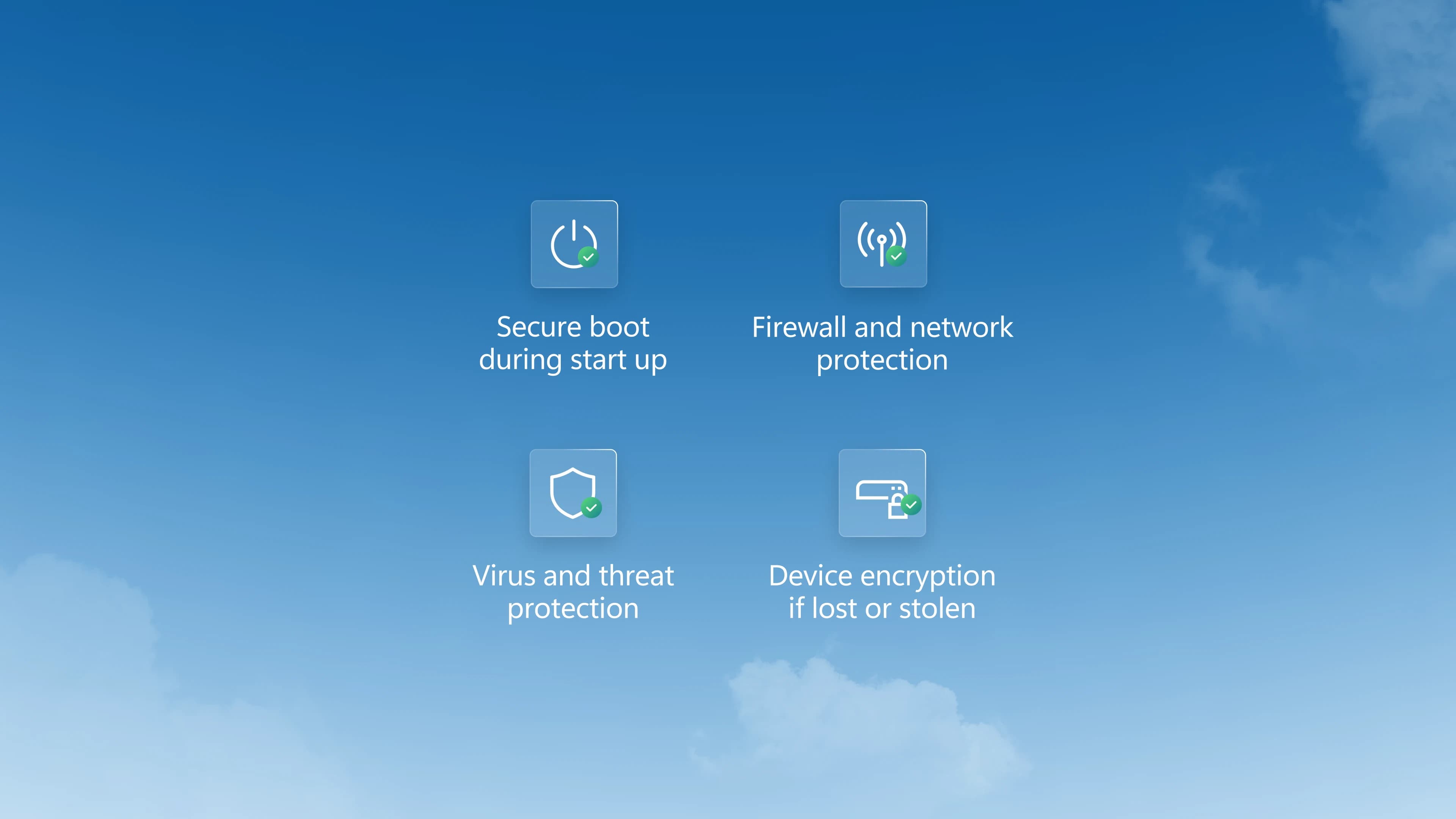
A system whose entire job is logging when an app asked for access to your camera, microphone, or location has managed to eat up to 500GB of drive space on Windows 11. Microsoft only confirmed the problem officially in early July, even though the bug shipped with an update from several months earlier. For anyone who spent that stretch manually deleting files or buying a bigger drive because their system kept getting tighter "for no reason," that confirmation landed way too late.
The culprit is a file called CapabilityAccessManager.db-wal, part of the camsvc service that logs when apps reach for privacy-sensitive resources. Instead of behaving like a normal log that gets compacted over time, the file started growing without limit after an update from February or March 2026. The result: hundreds of gigabytes taken up by a log file most users had never even heard of.
The file meant to keep track of your privacy turned out to be the biggest threat to your free disk space.
Where a half-terabyte file actually comes from
Capability Access Manager is a system service that handles something that sounds harmless enough: tracking which app asked for access to the camera, microphone, location, or other privacy-controlled resources, and when. Under normal conditions, that log stays small, since the database gets compacted regularly and old entries get cleared out. An update from around February or March 2026 broke exactly that compaction step. The write-ahead log file started growing endlessly instead of periodically cleaning itself up.
How bad it gets depends on how heavily a given machine runs apps that check privacy permissions. Some users reported just a few tens of gigabytes, but the worst-hit machines, especially ones that hadn't been restarted in a while or run a lot of camera- and microphone-hungry apps, crept up toward that half-terabyte ceiling. On plenty of laptops shipping with 512GB or 256GB drives, that's not a cosmetic annoyance in a storage settings panel, it's an actual functionality problem.
How to check if your machine is affected
Checking doesn't require any extra tools. Open File Explorer, paste C:\ProgramData\Microsoft\Windows\CapabilityAccessManager\ into the address bar, and check the size of CapabilityAccessManager.db-wal. If it's a few megabytes, everything's working fine. If it's measured in gigabytes, let alone tens of gigabytes, the machine is hit, and it's worth acting before the file grows further.
This is one of those bugs that hides exactly where a regular user would never think to look. The ProgramData folder is hidden by default in a lot of File Explorer configurations, and the file name doesn't hint at anything specific. Without prior knowledge of the issue, the only warning sign tends to be a low disk space alert that's nearly impossible to trace back to any particular app or download.
The official fix, and a manual one if you're already out of space
Microsoft shipped an optional preview update, KB5095093, on June 23, 2026, for Windows 11 versions 24H2 and 25H2. The patch does two things: it fixes the write-ahead log's compaction logic so the file stops growing without limit, and it runs a one-time cleanup that automatically clears out an already-bloated log if one exists on the machine. For most people, that's the simplest and safest route, and the fix is expected to roll into the mandatory security update on Patch Tuesday, July 14, 2026, which is this week.
For anyone already critically low on space who can't wait for the update, there's also a manual way to remove the bloated file. It takes some care, since the camsvc service actively uses that file while it's running.
Another rough patch for Windows 11 update quality
This bug isn't showing up in a vacuum. Around the same time, Microsoft also had to own up to problems with update KB5094126, which pushed some business HP laptops into recovery mode, BitLocker recovery screens, or Secure Boot errors. A few weeks earlier, Dell was dealing with a wave of driver crashes tied to a SupportAssist update that hit, among others, XPS 15 9530 owners. None of these are directly connected to the CapabilityAccessManager bug, but together they add up to a pattern: Windows 11 update quality control has clearly been struggling through the first half of 2026, and users increasingly find out about serious bugs only after running into the consequences themselves.
That pattern, more than any single bug tied to one log file, is what should worry people most. When system updates keep breaking things that used to work fine, and official confirmation only shows up months after forum complaints start piling up, trust in the update process itself starts cracking faster than Microsoft can ship the next patch.
Privacy systems are what's wrecking trust in privacy
There's a bitter irony here that's hard to ignore. CapabilityAccessManager exists to give users control over who's reaching for their camera, microphone, and location. Instead of reinforcing that sense of control, a mechanism built specifically around privacy turned into a months-long, unreported failure. That fits into a broader, increasingly uncomfortable pattern around Windows 11's privacy-facing features. Security researchers have also spent months warning about Windows Recall, the feature that takes regular screenshots into a local archive, saying the safeguards around such sensitive data still don't match the scale of what the system actually collects. One comparison from security researchers landed harder than most: the vault door might be titanium, but the wall right next to it is still drywall.
CapabilityAccessManager and Recall are two different features solving two different problems, but they share the same underlying issue: Microsoft keeps building more mechanisms that collect data about user behavior in the name of transparency and security, while regularly failing at the basic maintenance those mechanisms need. For the average user, the gap between an accounting bug in a permissions log and a security hole in a screenshot archive keeps shrinking, once both trace back to the same lack of quality control.
Comments
Discussion
Join the conversation around this story.
Join the discussion
Sign in to comment and reply to other readers.
Sign inNo comments yet
Start the discussion first.